Linkdfolio Team
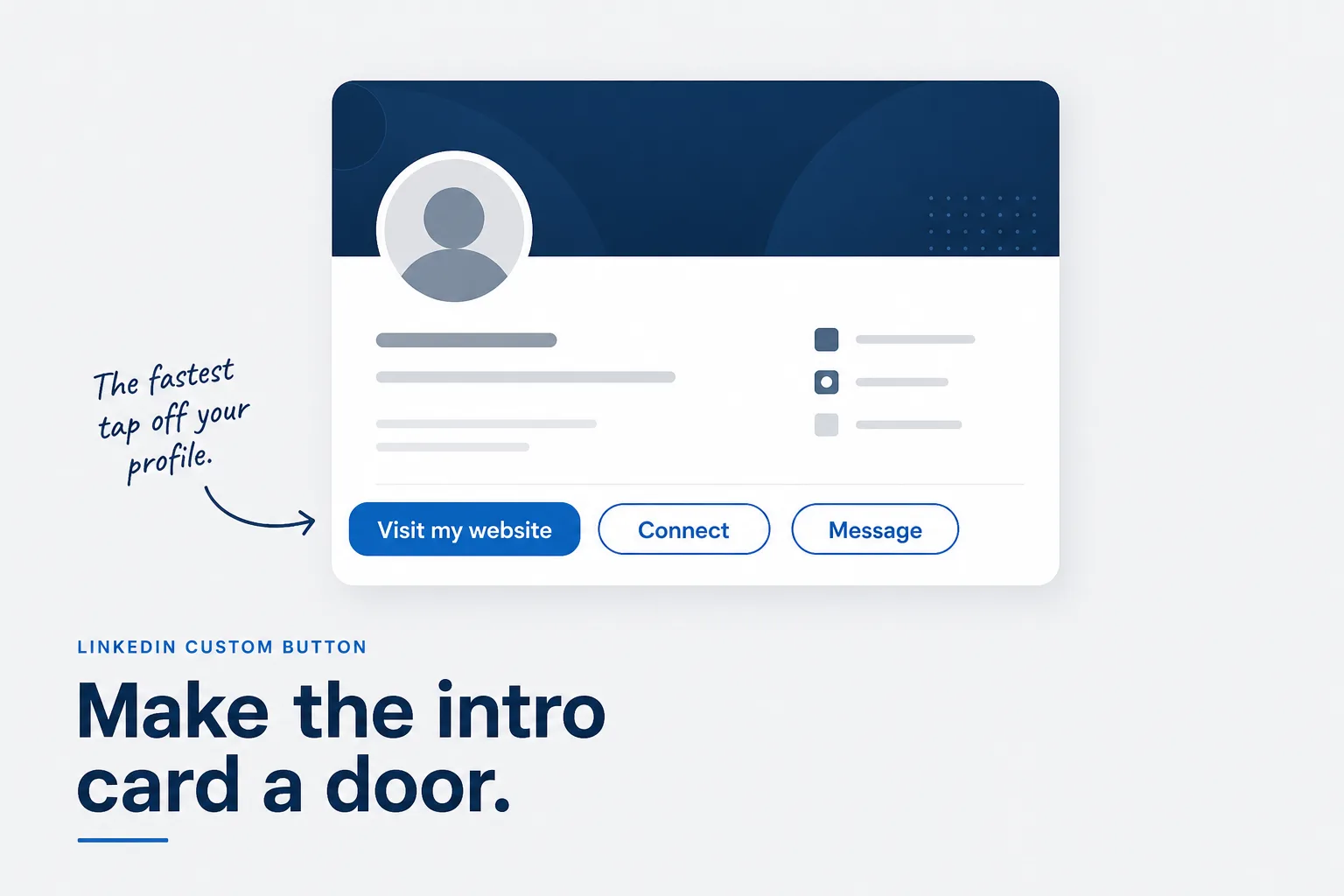
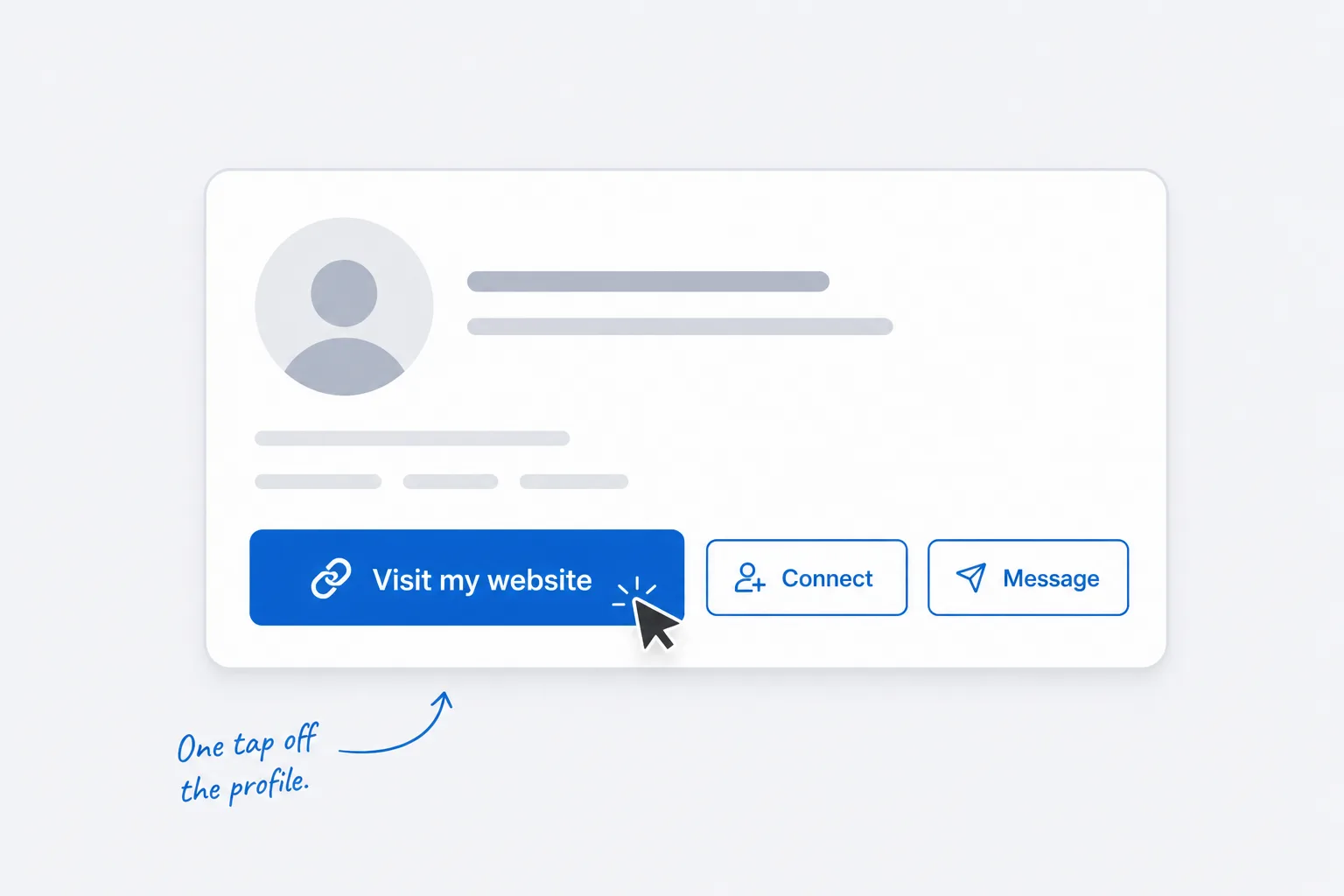
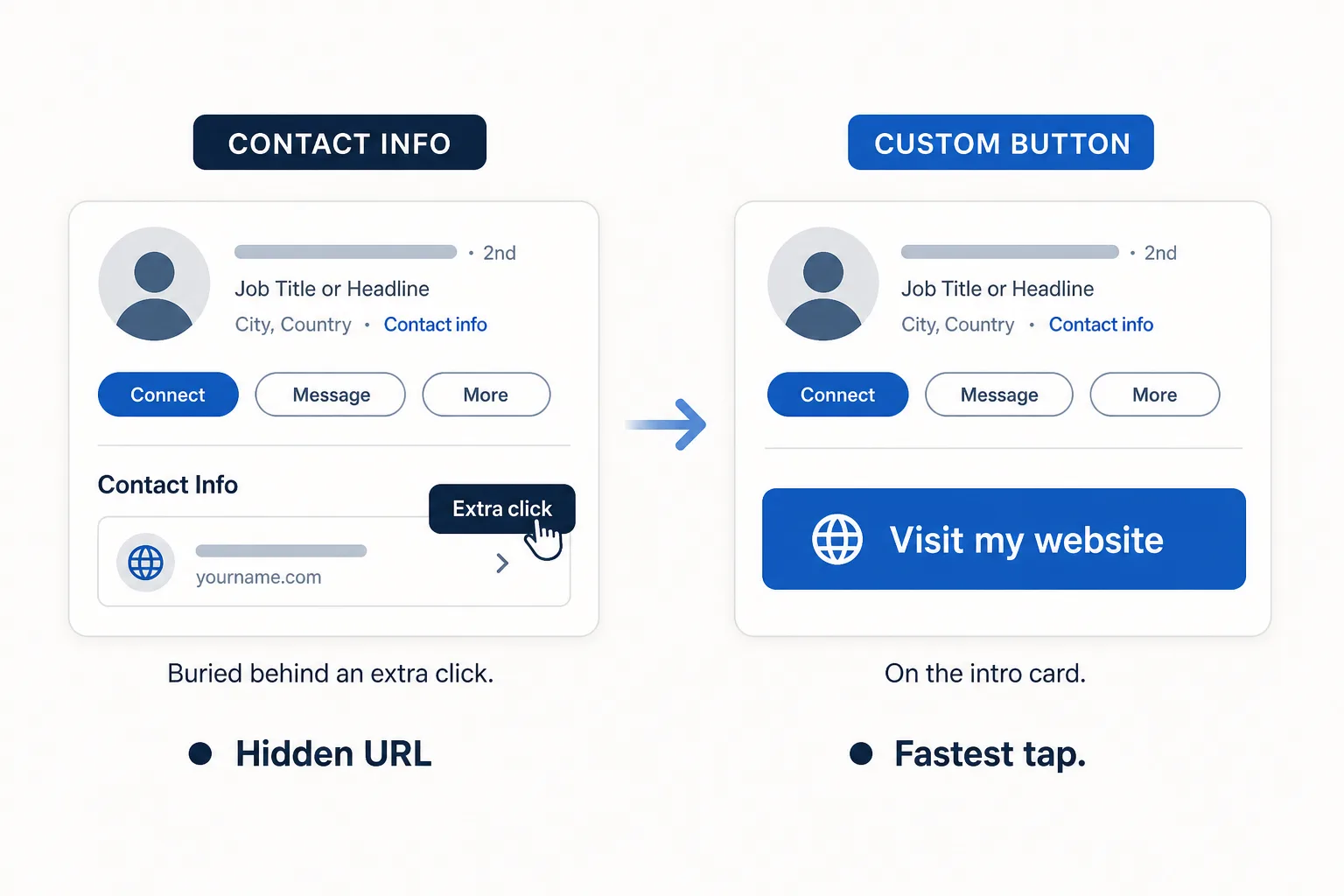
A LinkedIn custom button is the prominent call-to-action on your intro card — the one that can read Visit my website, View my portfolio, or Book an appointment. It sits under your headline, so profile visitors do not have to open Contact info to find your URL.
That is different from adding a website in Contact info, and different from pinning a card in Featured. This guide covers how to add a LinkedIn custom button in 2026, who actually gets it, what to do on a free account, and which URL belongs on the button.
Quick answer: If LinkedIn shows Add custom button on your intro card, choose Visit my website or View my portfolio, paste a live HTTPS URL, and save. If you do not see the control, you are not missing a hidden toggle — use Contact info + Featured instead. Either way, point the link at a real site, not linkedin.com/in/you.
What is the LinkedIn Visit my website button?
LinkedIn’s help docs describe the custom button as a profile CTA that links to a URL you choose. On accounts that support it, the button can appear on your profile and, depending on your plan, in other surfaces such as messages or search.
Typical labels include:
| Button text | Use it when |
|---|---|
| Visit my website | You have one primary destination (portfolio, personal site) |
| View my portfolio | Creative / product / consulting proof lives on that URL |
| View my blog | The destination is writing, not a bio |
| Book an appointment | Coaches, consultants, services with a scheduler |
| View my newsletter | Creators whose next step is subscribe, not a site |
| Visit my store / View my services | Commerce or a services menu — not a personal portfolio |
For most Linkdfolio readers, Visit my website or View my portfolio is the right label. The button is not a second LinkedIn page. It is a door off LinkedIn.
Do not confuse it with:
- Contact info → Website — available to every account; buried behind an extra click. Full steps: how to add a website to LinkedIn.
- Featured — visual cards with thumbnails; the best free high-visibility placement. Guide: LinkedIn Featured section.
- Services — a profile module for offering work. LinkedIn notes that adding a custom button can replace services on your profile. Pick one.
Who can add a LinkedIn custom button in 2026?
Treat eligibility as account-dependent, not as a universal free feature.
LinkedIn’s documented path is Premium Business, Sales Navigator, or Recruiter Lite. Those plans can add or edit the button from the intro card. Older walkthroughs still say Creator Mode unlocks it for free users. Creator tools have changed more than once; do not assume a free toggle still exists on your account.
How to check in 30 seconds
- Open your profile on desktop.
- Look on the intro card for Add custom button, or click the pencil and scroll for Custom button.
- If it is there, you can follow the steps below.
- If it is not there, skip the forum workarounds. Use the free placements instead.
Eligibility can differ by region and product experiment. The honest test is what your own intro editor shows today — not a screenshot from 2024.
How to add the LinkedIn custom button (Premium)
These steps match LinkedIn’s current help flow. Labels move occasionally; if a control is missing, use the pencil on the intro card and scroll to Custom button.
- Sign in on desktop (the editor is more complete than the mobile app).
- Click Me → View Profile.
- On the intro card, click Add custom button (or the pencil, then Custom button).
- Choose a label — Visit my website or View my portfolio for a personal site.
- Paste the full URL, including
https://. - Save, then open your profile in an incognito window (or ask a colleague) and confirm the button is visible.
If you already have a button: intro pencil → Edit custom button to change the label or URL, or Remove to drop it.
Tip: Adding a custom button can replace services on your profile. If you sell services from that module, decide which CTA matters more before you save.
Where the button shows up
On supported Premium accounts, LinkedIn can show the same CTA on the profile and on extra surfaces (messages, posts, or search). That is the whole point of the feature: fewer taps between “I found you” and “I opened your site.”
If the button is on and nobody clicks it, the problem is usually the destination, not the setting. A slow, empty, or generic page wastes the most visible slot on your profile.
Free accounts: Contact info and Featured
You can still put a website on LinkedIn without Premium. You cannot fake the intro-card button if LinkedIn does not offer it.
Do this instead:
- Contact info → Website — add up to three URLs; label one Portfolio or Personal. This is the canonical field recruiters look for.
- Featured → Add a link — pin the same URL as a preview card. This is the highest-visibility free placement.
- About — one sentence with the URL, not a paragraph of CTAs.
That trio is the free equivalent of a custom button: canonical field + visual card + a text mention. Step-by-step with screenshots: add a website to LinkedIn. Slot strategy for Featured: what to pin.
What URL should the button open?
Use a live, mobile-friendly personal site. The button is wasted on:
- Google Drive folders and PDFs
- Unfinished Notion pages
- A second LinkedIn URL
- A homepage that does not say what you do in the first screen
Good targets:
https://yourname.linkdfolio.com— hosted portfolio from your LinkedIn profilehttps://yourname.com— if you already connected a domain
The destination should match the button label. Visit my website should open a site, not a Calendly interstitial. Book an appointment can open a scheduler. Do not mix the two.
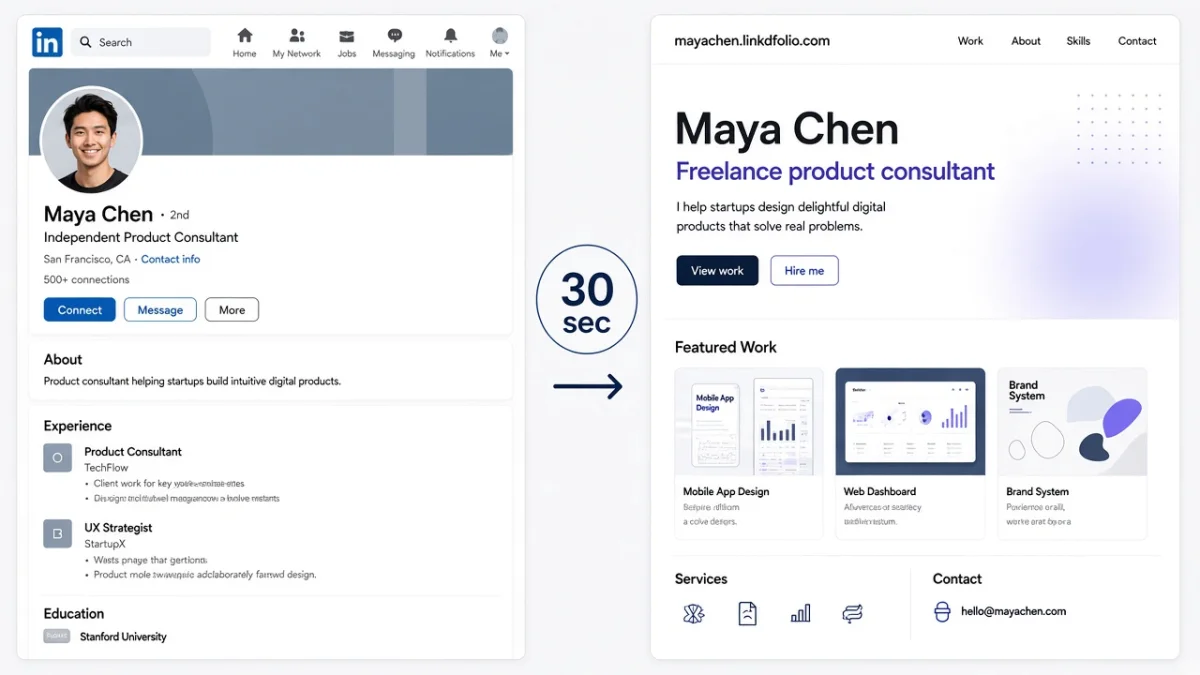
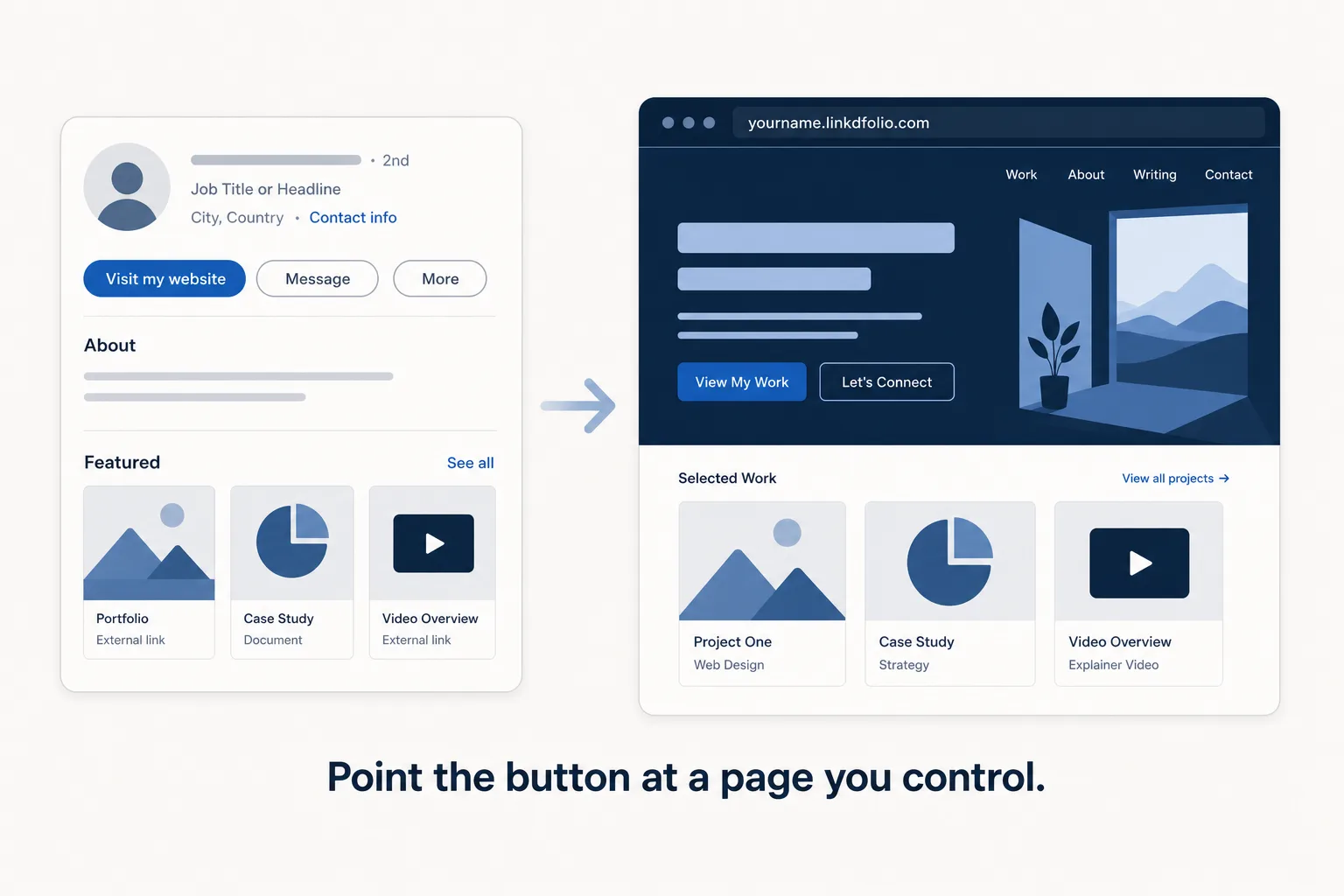
If you do not have a site yet, generate one from the profile you already maintain: turn LinkedIn into a website. Paste your public profile URL at linkdfolio.com, edit the draft, publish the subdomain, then paste that URL into the custom button (or Featured).
Custom button vs Featured vs Contact info
Use all three when you can. They do different jobs.
| Placement | Who can use it | Job |
|---|---|---|
| Custom button | Premium (documented); not on every free account | Fastest tap from the intro card |
| Featured | Everyone | Visual preview; works on free accounts |
| Contact info → Website | Everyone | Canonical URL for people who look |
Recommended default
- Premium with a button: Visit my website → your site. Same URL in Contact info. Featured card for people who scroll.
- Free: Featured (leftmost or second slot) + Contact info. Skip waiting for a Premium trial just to unlock the button.
If you are choosing between a button and a Featured card and can only maintain one link this week, Featured + a real URL beats a Premium button that opens a PDF.
Mistakes that kill click-through
- Pointing at LinkedIn. The button should leave the platform.
- Broken or “coming soon” URLs. Test in incognito on a phone.
- Auto-pulled titles on Featured (if you also pin the link). Override the title so it reads like a portfolio, not a generic page title.
- Mismatched story. Headline says “PM,” site still says last year’s title.
- Hiding the same URL. If you have the button, still add Contact info. Some visitors look there out of habit.
- Chasing the button when you do not have it. A Featured card ships today. A Premium upgrade is optional.
Before you save: checklist
- The control exists on your intro card (or you chose the free fallback)
- Label matches the destination (Visit my website → a website)
- URL is HTTPS, loads on mobile, and is not a Drive folder
- Same URL is in Contact info → Website
- Featured also pins that URL if you want a preview card
- You checked the live profile (incognito or a second account)
Common questions
How do I add Visit my website on LinkedIn?
If you have a custom button: intro card → Add custom button → Visit my website → paste your URL → save. If you do not have the control, add the URL in Contact info and pin it in Featured. That is the complete how to add Visit my website on LinkedIn path for free accounts.
Is the LinkedIn custom button free?
Not as a universal free feature. LinkedIn documents it for Premium Business, Sales Navigator, and Recruiter Lite. Free profiles should use Contact info and Featured. Do not pay for Premium only to unlock a button if Featured already gets the tap.
Can I add a custom button without Premium?
Only if LinkedIn shows you the control. There is no reliable hidden setting that restores the old Creator Mode button for every account. Check your intro editor; if it is absent, use the free placements.
Visit my website vs View my portfolio — which label?
Use View my portfolio if the page is proof of work (projects, case studies). Use Visit my website if it is a broader personal site. Both should open the same kind of live URL. For most job seekers, either label is fine as long as the page loads fast and states what you do.
Does the custom button replace Featured?
No. The button is a text CTA on the intro card. Featured is a row of preview cards. Keep both if you can: button for speed, Featured for context.
What if I already added services on my profile?
LinkedIn warns that a custom button can replace the services module. If inbound leads come from services, do not swap it for a button without a plan. A Featured portfolio link can coexist with services more safely.
Where should I link if I do not have a website yet?
Publish a site from your LinkedIn profile first — LinkedIn to website — then add that URL to the button or Featured the same day. An empty Calendly or a PDF is a weaker destination than a structured page with your experience on it.
Next steps
The LinkedIn custom button is only as good as the page it opens. Get the URL right, then place it where your account allows.
- Paste your LinkedIn URL → Publish
yourname.linkdfolio.com. - Add the custom button if you have it — Visit my website or View my portfolio.
- Mirror the URL in Contact info and Featured so free-account visitors still find it.
More guides: LinkedIn Featured section · personal website vs LinkedIn · Linkdfolio blog